/Logos/SupplyKick_Logo.svg "SupplyKick_Logo")


An Amazon Storefront is a brand-controlled destination inside Amazon where you can showcase your product catalog, explain your brand, and build a shopping experience that does more than a single product page can.
If you sell on Amazon and you're enrolled in Brand Registry, you can create one. It's free. It takes a few hours to build. And when it's done right, it becomes a landing page for ads, a discovery tool for new shoppers, and a merchandising asset that helps you control how people move through your catalog.
But most brands treat their Storefront like a one-time design project. They publish it, send some traffic to it, and never touch it again. That's a mistake. The Storefront works when you treat it like a campaign asset that gets updated, measured, and improved based on what shoppers actually do.
This guide walks through who can create an Amazon Storefront, how to build one step by step, how to design it so it converts, how to drive traffic to it, and how to measure whether it's working.
In This Guide
- What an Amazon Storefront Is and Why It Matters
- Who Can Create an Amazon Storefront?
- How to Build an Amazon Storefront: Step-by-Step Setup
- How to Design a Storefront That Converts
- How to Drive Traffic to Your Amazon Storefront
- How to Measure Storefront Performance
- Amazon Storefront Examples and What They Get Right
- Frequently Asked Questions
What an Amazon Storefront Is and Why It Matters
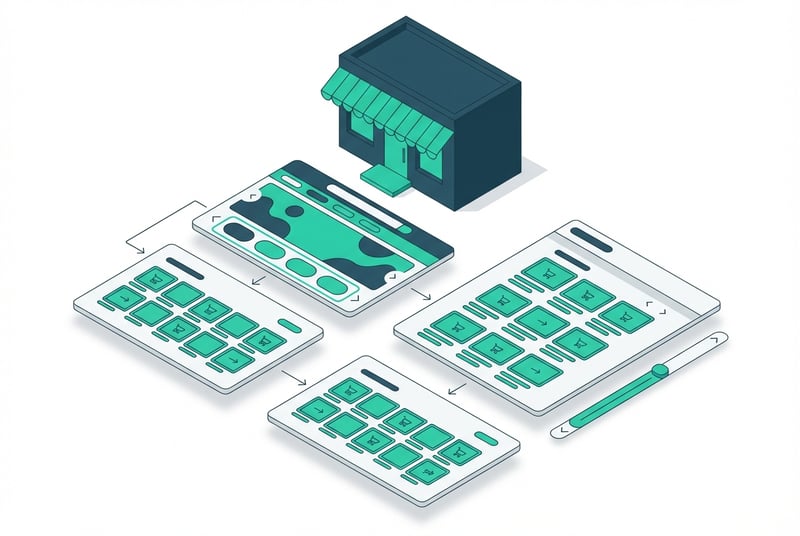
An Amazon Storefront is Amazon's term for a multi-page branded destination that sits inside the Amazon marketplace. It's different from a product detail page because it's not tied to one ASIN. It's also different from A+ Content because it lives at its own URL and can host multiple pages, navigation, and a full product assortment.
Amazon Brand Store vs Influencer Storefront
Amazon uses the phrase "Amazon storefront" to describe two different things:
Brand Store
A multi-page destination for brands selling their own products. Requires Brand Registry. This is what most sellers mean when they say "storefront."
Influencer Storefront
A curated product page created by Amazon influencers who recommend products from multiple brands. Does not require the creator to sell anything.
This guide is about Brand Stores. If you're a seller or vendor trying to build a store for your brand, you're building a Brand Store.
Why Brands Use Storefronts for Discovery, Education, and Conversion
A Storefront gives you a place to:
- Show your full product line in one location instead of hoping shoppers find it through search
- Explain what your brand does without fighting the rigid structure of a product page
- Route paid traffic (Sponsored Brands, display ads, social, email) to a branded landing page instead of a generic product listing
- Cross-sell and upsell by organizing products into categories, use cases, or seasonal collections
- Measure performance at the page and section level using Store Insights
Amazon's 2024 benchmarks show that shoppers who visit a Brand Store purchase 53.9% more frequently, add to cart at a 52.1% higher rate, and generate 71.3% higher average order value compared to shoppers who don't.
That does not mean publishing a store automatically lifts sales. It means that when the store is built well and traffic is routed correctly, it becomes a conversion multiplier.
Who Can Create an Amazon Storefront?
You need three things to create a Brand Store:
Brand Registry Requirements
You must be enrolled in Amazon Brand Registry. That means you need an active registered trademark for the brand you sell. If you're not enrolled yet, start there first.
Seller or Vendor Account Requirements
You need a Professional selling account or an Amazon Vendor account. Individual seller accounts do not qualify.
Amazon Ads Registration
You need access to the Amazon Ads console. Most sellers get this automatically when they sign up for a Professional account. If you don't have it yet, you can register through advertising.amazon.com using your Seller Central credentials.
Once those three pieces are in place, you can build a Storefront.
How to Build an Amazon Storefront: Step-by-Step Setup
Building a Brand Store happens inside the Amazon Ads console, not Seller Central. Here's the actual workflow:
Step 1: Access Manage Stores
Log into your Amazon Ads account and go to Stores from the main menu. Click Manage stores.
Step 2: Select Your Brand
If you're enrolled in Brand Registry for multiple brands, you'll see a list. Pick the brand you want to build a store for.
Step 3: Set Your Brand Display Name, Logo, and Meta Description
Amazon asks for:
- Brand display name: This is what shoppers see in the byline and at the top of your store. Use the exact brand name that matches your trademark.
- Logo: Upload a square PNG or JPG, at least 400x400px. This shows up in the header and search results.
- Meta description: Write a one-sentence description of your brand or product line. This appears in search results and external links.
Step 4: Choose a Template or Start with a Blank Layout
Amazon gives you two options:
- Use a template: Pre-built layouts with placeholder sections. Good if you want to publish fast.
- Start from scratch: Blank canvas. More control, but takes longer.
Pick the one that matches your timeline and design preferences.
Step 5: Build Your Homepage
The homepage is the main landing page for your store. It should do two things quickly: explain what your brand makes, then get shoppers into your catalog.
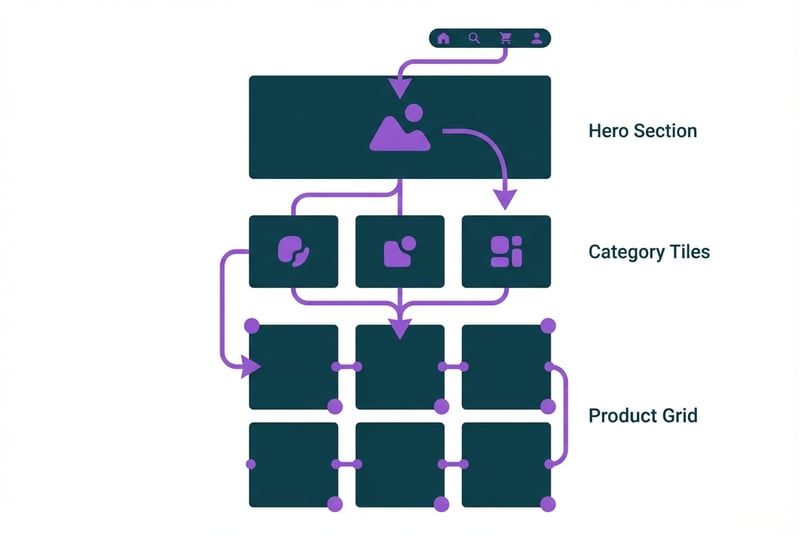
Most high-performing homepages include:
- A hero section (image or video) that explains what you sell or what problem you solve
- A product grid or product carousel showing best sellers or featured items
- Category tiles that route shoppers to subpages
- A short brand story or mission statement, but not a full essay
Amazon's drag-and-drop builder lets you add text blocks, image tiles with links, product grids (manual or dynamic), video, and shoppable images.
Preview on desktop and mobile as you build. Shoppers use mobile more than desktop, so check both before you publish.
Step 6: Create Subpages
Subpages let you organize your catalog by category, use case, or product line. If you have more than six products, you should create at least one subpage.
Examples:
- A cookware brand could create subpages for "Pots & Pans," "Bakeware," and "Accessories."
- A supplements brand could create subpages for "Energy," "Recovery," and "Sleep."
- A pet brand could create subpages for "Dogs," "Cats," and "Small Animals."
Each subpage gets its own layout, header, and product selection. You don't have to duplicate the homepage structure. In fact, subpages should be more focused: less brand story, more products.
Step 7: Set Up Navigation
Amazon auto-generates a top navigation bar based on your homepage and subpages. You can reorder pages or rename nav labels inside the builder.
Make sure the nav is clear. If a shopper lands on a subpage from an ad, they should be able to get back to the homepage or jump to another category without scrolling.
Step 8: Preview and Submit for Moderation
Before you publish, preview the store on desktop and mobile. Check:
- All images load correctly
- Links go to the right place
- Product tiles pull the right ASINs
- Text is readable on small screens
When you're ready, submit the store for moderation. Amazon reviews it for policy compliance (no competitor mentions, no off-Amazon links, no misleading claims).
Approval usually takes less than 24 hours. Once approved, the store goes live automatically.
Step 9: Get Your Store URL
After approval, Amazon assigns a public URL. It follows this format:
amazon.com/stores/[YourBrandName]/page/[ID]
You can also create a short URL through the Manage Stores dashboard. Short URLs are cleaner for ads, social posts, and email campaigns.
How to Design a Storefront That Converts
Publishing a store is the minimum. Making it convert takes more work.
Keep the Homepage Short and Action-Oriented
Shoppers should hit "shop now" or a product grid within two scrolls. If your homepage is 90% brand story and 10% product, flip it.
Good Homepage Structure
- Hero: What you make or what problem you solve (one image or video, one sentence)
- Product grid: Best sellers or featured products
- Category tiles: Links to subpages
- Optional brand section: One paragraph max
Bad Homepage Structure
- Long brand manifesto
- Generic lifestyle images with no products
- "Our story" section that takes five scrolls
- Product grid buried at the bottom
The homepage is a discovery tool, not a brochure. Get shoppers to products fast.
Use Subpages for Focused Shopping
Subpages should feel like category pages, not mini-homepages. Drop the brand story. Show products grouped by type, use case, or audience.
If you send Sponsored Brands traffic to a subpage, the shopper already knows they want that category. Don't make them scroll past brand content to find the product they clicked on.
Check Mobile Layout Before You Publish
Most store traffic comes from mobile. If your images are too small, text is unreadable, or tiles don't load correctly on a phone, shoppers leave.
Amazon's preview tool shows mobile and desktop side by side. Use it.
Use Dynamic Product Widgets When You Can
Amazon lets you create product grids that auto-update based on best sellers, new releases, or top-rated products. This keeps your store current without manual updates.
Static product grids work fine too, but you have to swap products manually when inventory changes or new SKUs launch.
How to Drive Traffic to Your Amazon Storefront
A Storefront does not generate traffic by itself. You have to send shoppers to it.
Sponsored Brands and Amazon Ads
Sponsored Brands ads let you use your store as the landing page instead of a product page. This works well for:
- Brand awareness campaigns where you want to show your full catalog
- Category-level campaigns where you want shoppers to compare options instead of landing on one ASIN
- Launch campaigns where you're promoting multiple new products at once
You can also use display ads and video ads to drive traffic to the store.
When you set up the campaign, choose whether traffic goes to the homepage or a subpage. If the campaign is category-specific ("pots and pans"), send traffic to the pots and pans subpage, not the homepage.
Social, Email, Creator, and Off-Amazon Traffic
You can share your store URL anywhere: Instagram posts, stories, or link-in-bio. Email campaigns promoting your Amazon catalog. YouTube video descriptions. Influencer or affiliate partnerships.
Amazon also lets you create source-tagged URLs so you can track which external channels drive the most store traffic. Set up source tags inside the Manage Stores dashboard.
When to Send Traffic to the Storefront vs a Product Page
Use the Storefront When:
- You want shoppers to browse multiple products
- You're running a brand awareness campaign
- You're promoting a new product line or category
Send to a Product Page When:
- You're running a conversion-focused campaign for one ASIN
- You know exactly what the shopper is searching for
- You want the fastest path from ad to purchase
There's no universal rule. Test both and see which converts better for your brand.
How to Measure Storefront Performance
Amazon gives you Store Insights data for every store you publish. This is where you figure out what's working and what's not.
Store Insights Metrics to Monitor
Traffic
- Daily visitors
- Traffic sources (Amazon Ads, external, search, brand byline)
- New-to-store visitors vs returning visitors
Engagement
- Page views per visit
- Average dwell time (how long shoppers stay)
- Bounce rate (percentage who leave without clicking anything)
Sales
- Units sold attributed to store visits
- Sales attributed to store visits
- Conversion rate (visitors who buy)
Section-Level Data (Beta)
Amazon started rolling out section-level insights in 2026. This shows:
- Renders: How many times each section loaded
- Clicks: How many times shoppers clicked a product tile, image, or link inside a section
- Click-through rate by section
This is useful when you're testing different layouts or trying to figure out which product grids perform best.
How to Use Data to Update Creative and Navigation
High traffic, low sales: Shoppers are visiting but not buying. Move best sellers higher on the page. Reduce brand story content and show more products. Check mobile layout.
High bounce rate: Shoppers land and leave without clicking. Make the first section more action-oriented (product grid, not brand essay). Check load time. Simplify navigation.
Low page views per visit: Shoppers aren't exploring subpages. Make category tiles more visible on the homepage. Add product carousels that link to subpages. Test different nav labels.
Amazon recommends updating stores at least once per quarter. Stores updated within the past 90 days see 11% more repeat visitors and 13% higher attributed sales per visitor on average.
Amazon Storefront Examples and What They Get Right
The best Storefronts share a few patterns:
What Strong Storefronts Have in Common
- Clear homepage structure: Hero section, product grid, category tiles. No scrolling through five brand story sections to find products.
- Mobile-friendly layout: Images load fast, text is readable, tiles are tappable.
- Focused subpages: Each subpage is a shopping destination, not a duplicate of the homepage.
- Updated regularly: Stores that reflect current product lines, seasonal promotions, or new launches perform better than static stores that haven't changed in a year.
- Strategic traffic routing: Brands that send Sponsored Brands traffic to relevant subpages instead of always routing to the homepage see better conversion on category-specific campaigns.
What SupplyKick Looks for During Store Audits
When we review a partner's Storefront, we check:
- Is the homepage front-loaded with products, or buried under brand content?
- Do subpages exist, and are they organized logically?
- Is the mobile experience clean and fast?
- Are best sellers featured prominently?
- Does the navigation make sense for someone landing from an ad?
- Is the store updated regularly, or has it been untouched since launch?
- Are Store Insights being monitored, or is the brand just hoping the store works?
Most underperforming stores fail because they were published once and never touched again. The store is a merchandising tool, not a set-it-and-forget-it asset.

Frequently Asked Questions About Amazon Storefronts
Is an Amazon Storefront free?
Yes. There is no cost to create or maintain a Brand Store. You don't need to run ads to have a store, but ads are the most reliable way to drive traffic to it.
How long does approval take?
Most stores are approved within 24 hours. Amazon reviews for policy compliance (no competitor mentions, no off-Amazon links, no misleading claims). If something gets flagged, you'll get an email with the issue and a chance to fix it.
Can anyone create one?
No. You need to be enrolled in Brand Registry, have a Professional selling account or Vendor account, and have access to the Amazon Ads console.
Individual seller accounts and sellers who aren't brand-registered cannot create a Storefront.
How do shoppers find it?
Shoppers can find your store through:
- The brand byline on your product pages (click the brand name)
- Sponsored Brands ads that use the store as the landing page
- Display or video ads
- Direct links you share on social, email, or other channels
- Amazon search results (occasionally, but not reliably)
Organic discovery is limited. Most store traffic comes from paid ads or external links you control.
How often should you update it?
At least once per quarter. Stores that are updated regularly see better repeat visitor rates and higher sales per visitor.
You should also update the store when:
- You launch new products
- You run a seasonal promotion or event (Prime Day, holiday, category-specific campaign)
- Store Insights data shows a section or page is underperforming
Treat the store like a living merchandising asset, not a one-time design project.
Need Help Building or Refreshing Your Amazon Storefront?
A Storefront works when it's built like a shopping destination, not a brand brochure. That means: clear navigation, mobile-friendly design, product-first layout, regular updates, and performance tracking through Store Insights.
If your store hasn't been touched since launch, or you're not sure how to route traffic and measure what's working, that's where SupplyKick can help. We build Storefronts that convert, run the ad campaigns that drive traffic to them, and track performance so you know what's actually working.
We also handle the ongoing maintenance: seasonal updates, new product integration, layout testing, and creative refreshes so your store stays current as your catalog grows.
Want to talk through your Storefront strategy? Connect with our team and we'll walk through what your store needs to perform better.




/Logos/SupplyKick/SupplyKick-Logo_White.svg "SupplyKick-Logo_White")