Let's Talk
CLOSE

How to Use Amazon Social Media Promo Codes in Seller Central

Learn how Amazon social media promo codes work, who can use them, how to set them up in Seller Central, and when they make sense for sellers.

Amazon Social Media Promo Codes: Seller Setup Guide

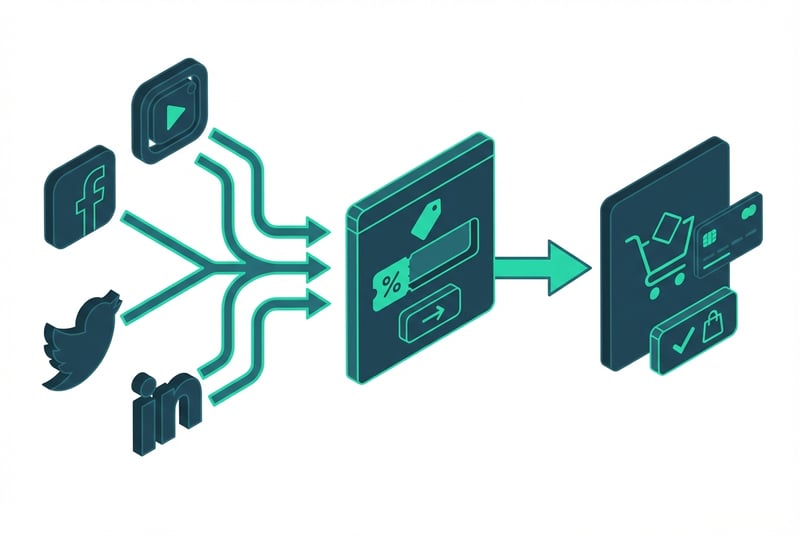
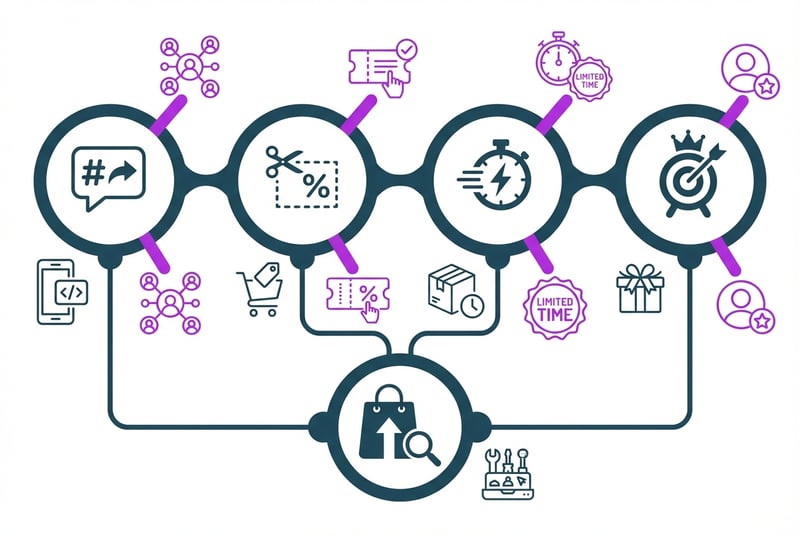
Amazon Social Media Promo Codes give sellers a way to run controlled off-Amazon discount campaigns without making the offer visible on the product detail page. The tool creates a dedicated Amazon-hosted landing page and applies the discount automatically at checkout for shoppers who arrive through your custom promo link.

This is not a new feature. Amazon launched it in 2017. But it still fills a specific role: you want to drive traffic from email, creators, or social channels to Amazon with a discount offer, and you don't want that discount sitting on your listing for everyone to see.

Here's when it makes sense, how to set it up, and how to measure whether it worked.

When to Use Social Media Promo Codes (and When Not To)

Use Social Media Promo Codes when:

  • You're sending traffic from outside Amazon (email list, influencer partnership, paid social, community)
  • You want the discount auto-applied so shoppers don't need to copy-paste a claim code manually
  • You want to control who sees the offer instead of showing it on the product page
  • You're testing channel performance with different codes or redemption limits
  • You're moving slow inventory or supporting a launch with a short controlled push

Don't use Social Media Promo Codes when:

  • You want on-Amazon visibility: use a Coupon instead. Coupons show a badge on search results and the detail page.
  • You want to retarget existing customers with personalized offers: use Brand Tailored Promotions if you qualify.
  • You're running a broad site-wide deal and want maximum reach: a Lightning Deal or Prime Day participation may be the better fit.
  • You can't afford margin erosion if the code spreads beyond your intended audience: Social Media Promo Codes can leak to deal forums and browser-extension users if you use a public group code.
What Makes Social Media Promo Codes Different from Other Amazon Discounts?

Amazon gives sellers several discount tools. Here's where Social Media Promo Codes fit:

Social Media Promo Code: Creates a shareable Amazon landing page. Discount auto-applies at checkout. Best for off-Amazon traffic. Not visible on product pages.

Coupon: Shows a clippable badge on search and detail pages. Shoppers clip it before checkout. High on-Amazon visibility. Can't customize the claim URL for external campaigns.

Deal (Lightning Deal, Best Deal, etc.): Time-limited, high-visibility placements. Strict inventory and discount requirements. Great for discovery, not targeted external campaigns.

Percentage-Off Promotion (standard): Flexible discount rules (buy X get Y, spend thresholds). Visible on detail page. Not built for shareable external links.

Brand Tailored Promotion: Personalized retargeting for existing customers. Requires Brand Registry and customer data integration. Not for first-time or cold traffic.

If you're driving external traffic and want a frictionless Amazon checkout experience without on-page visibility, Social Media Promo Codes are the right tool.
Who Can Use Amazon Social Media Promo Codes?

Current eligibility (as of 2026):

You must be enrolled in Amazon Brand Registry to access Social Media Promo Codes in Seller Central. The feature is available in the U.S. marketplace.

Why the option may not appear in your account:

  • You're not enrolled in Brand Registry
  • Your account is in a non-U.S. marketplace where the feature isn't available
  • Your account has active policy violations or performance issues
  • You're using a restricted category where promotional tools have limited access

If you meet the Brand Registry requirement and still don't see the option, check Seller Central help or contact Seller Support to confirm your account status.

How to Create a Social Media Promo Code in Seller Central

Step 1: Navigate to Promotions

In Seller Central, hover over the Advertising tab and select Promotions from the dropdown menu. On the Promotions dashboard, you'll see Social Media Promo Code as one of the available promotion types. Click Create.

Step 2: Choose Products and Discount Settings

Under Conditions, select the product or product group you want to promote. Set your discount percentage. The discount range is typically 5% to 80% off the current price of the item, but verify the current minimum in Seller Central as requirements can change.

Step 3: Set Schedule, Claim Code, and Review Terms

Under Scheduling, choose your start and end dates. Amazon caps Social Media Promo Codes at 30 days maximum. Under Additional Options, you can customize your claim code (8 characters, must include the discount percentage, e.g., "20OFF4U"). Review the terms and conditions.

Step 4: Submit for Approval

Click Review, confirm the details, and submit. Your promo code will typically be active within four hours. Amazon will provide a custom landing-page URL that you can share through your external channels.

Step 5: Test the Redemption Flow

Before you share the link publicly, open the URL yourself and confirm the discount applies correctly at checkout. Verify the products are showing, the discount calculates as expected, and the landing page loads cleanly.

How the Promo Code Works for Shoppers

When a shopper clicks your Social Media Promo Code link, they land on a dedicated Amazon page that shows only the products included in your promotion. They add items to their cart. At checkout, the discount applies automatically. No manual code entry required.

This is why Social Media Promo Codes work well for creator campaigns and email pushes: you reduce friction. Shoppers don't need to remember a code or fumble with copy-paste during checkout.

The landing page stays live for the duration of your promotion schedule. After the promotion ends, the URL may redirect to a generic Amazon page or show an expired-offer message, depending on current Amazon behavior.

Best Practices for Driving Traffic to Your Promo Code Landing Page

Distribution Channels That Work Well

Email campaigns: Send the link to your email list with a clear offer hook and urgency framing (limited time, limited quantity).

Creator partnerships: Give influencers or Amazon Influencers the promo link so their followers get the discount without friction.

Organic social: Share the link on Instagram, Facebook, TikTok, or Twitter with a strong visual and clear discount callout.

Paid social ads: Run Facebook or Instagram ads that drive traffic directly to the Amazon promo landing page.

Community or newsletter sponsorships: Share the link in relevant online communities, Slack groups, or newsletter placements where your audience hangs out.

Offer Structure and Urgency

Use time-based urgency ("24-hour flash sale," "ends Friday") or quantity-based urgency ("first 100 orders," "while supplies last") to drive faster action. Make the discount meaningful enough to justify the click, but protect your margin. A 15% or 20% discount often hits the sweet spot for moving volume without eroding profitability.

Margin and Inventory Guardrails

Set a promotion budget by currency amount or order count in Seller Central. Amazon may pause the promotion around 80% of budget, but there's a trailing window where additional orders can still come through and exceed your cap. Monitor spend daily if margin protection matters.

Check your inventory levels before launch. If you're promoting a product with low stock, you risk going out of stock mid-campaign, which kills momentum and can hurt your listing ranking.

Claim-Code Strategy

You can choose a group claim code (same code for everyone) or set up single-use codes (unique code per recipient). Group codes are easier to share but can leak to deal sites and browser-extension users. Single-use codes give you tighter control and cleaner attribution if you're working with multiple creators or testing different email segments.

If you're worried about code leakage, use redemption limits or tighter audience targeting instead of relying on a public group code.

How to Track Results and Avoid Common Mistakes

Where to Find Performance Data

Manage Your Promotions dashboard: Shows promotion status, start/end dates, tracking ID, and order count.

Order reports: Download your order-level reports from Seller Central and filter by promotion ID to see which orders used the promo code.

Promotion performance reports: Check the Promotions section in Seller Central for summary metrics on discount usage, total spend, and redemption counts.

Amazon does not provide granular traffic-source attribution by default. If you want to know which creator or email segment drove the most conversions, you'll need to use different claim codes for each channel or rely on external tracking tools like Amazon Attribution (separate setup required).

Common Setup Mistakes to Avoid

  • Not testing the landing page before sharing it publicly: Broken links or incorrect discount calculations damage trust fast.
  • Setting a discount too low to drive action: A 5% or 10% discount won't justify the click.
  • Ignoring inventory checks before launch: Running out of stock mid-campaign wastes your marketing spend and frustrates shoppers.
  • Using a public group code without redemption limits: The code can spread to deal forums, coupon aggregators, or browser-extension databases, eating your margin.
  • Forgetting to monitor budget daily: Amazon's trailing-order window means you can overspend if you're not paying attention.
  • Not aligning the promo schedule with your campaign timing: If your email goes out on Monday and the promo doesn't activate until Wednesday, you lose early momentum.

FAQ About Amazon Social Media Promo Codes

How long can a Social Media Promo Code run?

Amazon caps Social Media Promo Codes at 30 days maximum. You can set a shorter duration if you want a flash sale or limited-time push.

Can you customize the claim code?

Yes. You can create a custom 8-character claim code that must include the discount percentage (e.g., "25DEAL4U" for a 25% discount). If you don't customize it, Amazon generates a code for you.

Can creators or influencers share the promo code link?

Yes. This is one of the main use cases for Social Media Promo Codes. You give the influencer your custom landing-page URL, and they share it with their audience. The discount applies automatically at checkout, so their followers don't need to enter a code manually.

What if the Social Media Promo Code option is missing from my Seller Central account?

Check that you're enrolled in Amazon Brand Registry and that you're in the U.S. marketplace. If you meet those requirements and still don't see the option, contact Seller Support to confirm your account eligibility.

How do you track which orders came from the promo code?

Use the Manage Your Promotions dashboard to see total order count. For order-level detail, download your order reports and filter by the promotion ID or tracking ID assigned to your Social Media Promo Code.

What happens to the landing page after the promotion ends?

The URL may redirect to a generic Amazon page or show an expired-offer message. Do not continue sharing the link after the promotion ends, as it will confuse shoppers and create a poor experience.

Can you run multiple Social Media Promo Codes at the same time?

Yes. You can create separate promo codes for different products, different channels, or different audience segments. Use distinct claim codes and tracking IDs to measure performance separately.

What discount percentage should you use?

It depends on your margin, competition, and campaign goal. A 15% to 25% discount is common for driving volume without severe margin erosion. Higher discounts (30% to 50%+) work for clearance, overstock, or aggressive launch pushes, but watch your profitability closely.

When Social Media Promo Codes Make Sense for Your Amazon Strategy

Social Media Promo Codes are a specific tool for a specific job: controlled off-Amazon discount campaigns with a frictionless checkout experience.

They work best when you're driving external traffic (email, creators, paid social) and you want the discount auto-applied without on-page visibility. They're not the right fit if you want on-Amazon discovery (use a Coupon) or personalized retargeting (use Brand Tailored Promotions).

Set them up correctly, track the results, protect your margin, and use them as part of a broader promotional strategy, not as your only growth lever.

If you're looking for help with Amazon promotions, advertising, or channel strategy, SupplyKick's team can help you build a plan that fits your business.

Related Resources

How to Use Amazon Social Media Promo Codes in Seller Central

SupplyKick
Nov 10, 2017 2:52:19 PM | Updated Mar 17, 2026

Amazon Social Media Promo Codes: Seller Setup Guide

Amazon Social Media Promo Codes give sellers a way to run controlled off-Amazon discount campaigns without making the offer visible on the product detail page. The tool creates a dedicated Amazon-hosted landing page and applies the discount automatically at checkout for shoppers who arrive through your custom promo link.

This is not a new feature. Amazon launched it in 2017. But it still fills a specific role: you want to drive traffic from email, creators, or social channels to Amazon with a discount offer, and you don't want that discount sitting on your listing for everyone to see.

Here's when it makes sense, how to set it up, and how to measure whether it worked.

When to Use Social Media Promo Codes (and When Not To)

Use Social Media Promo Codes when:

  • You're sending traffic from outside Amazon (email list, influencer partnership, paid social, community)
  • You want the discount auto-applied so shoppers don't need to copy-paste a claim code manually
  • You want to control who sees the offer instead of showing it on the product page
  • You're testing channel performance with different codes or redemption limits
  • You're moving slow inventory or supporting a launch with a short controlled push

Don't use Social Media Promo Codes when:

  • You want on-Amazon visibility: use a Coupon instead. Coupons show a badge on search results and the detail page.
  • You want to retarget existing customers with personalized offers: use Brand Tailored Promotions if you qualify.
  • You're running a broad site-wide deal and want maximum reach: a Lightning Deal or Prime Day participation may be the better fit.
  • You can't afford margin erosion if the code spreads beyond your intended audience: Social Media Promo Codes can leak to deal forums and browser-extension users if you use a public group code.

What Makes Social Media Promo Codes Different from Other Amazon Discounts?

Amazon gives sellers several discount tools. Here's where Social Media Promo Codes fit:

Social Media Promo Code: Creates a shareable Amazon landing page. Discount auto-applies at checkout. Best for off-Amazon traffic. Not visible on product pages.

Coupon: Shows a clippable badge on search and detail pages. Shoppers clip it before checkout. High on-Amazon visibility. Can't customize the claim URL for external campaigns.

Deal (Lightning Deal, Best Deal, etc.): Time-limited, high-visibility placements. Strict inventory and discount requirements. Great for discovery, not targeted external campaigns.

Percentage-Off Promotion (standard): Flexible discount rules (buy X get Y, spend thresholds). Visible on detail page. Not built for shareable external links.

Brand Tailored Promotion: Personalized retargeting for existing customers. Requires Brand Registry and customer data integration. Not for first-time or cold traffic.

If you're driving external traffic and want a frictionless Amazon checkout experience without on-page visibility, Social Media Promo Codes are the right tool.

Who Can Use Amazon Social Media Promo Codes?

Current eligibility (as of 2026):

You must be enrolled in Amazon Brand Registry to access Social Media Promo Codes in Seller Central. The feature is available in the U.S. marketplace.

Why the option may not appear in your account:

  • You're not enrolled in Brand Registry
  • Your account is in a non-U.S. marketplace where the feature isn't available
  • Your account has active policy violations or performance issues
  • You're using a restricted category where promotional tools have limited access

If you meet the Brand Registry requirement and still don't see the option, check Seller Central help or contact Seller Support to confirm your account status.

How to Create a Social Media Promo Code in Seller Central

Step 1: Navigate to Promotions

In Seller Central, hover over the Advertising tab and select Promotions from the dropdown menu. On the Promotions dashboard, you'll see Social Media Promo Code as one of the available promotion types. Click Create.

Step 2: Choose Products and Discount Settings

Under Conditions, select the product or product group you want to promote. Set your discount percentage. The discount range is typically 5% to 80% off the current price of the item, but verify the current minimum in Seller Central as requirements can change.

Step 3: Set Schedule, Claim Code, and Review Terms

Under Scheduling, choose your start and end dates. Amazon caps Social Media Promo Codes at 30 days maximum. Under Additional Options, you can customize your claim code (8 characters, must include the discount percentage, e.g., "20OFF4U"). Review the terms and conditions.

Step 4: Submit for Approval

Click Review, confirm the details, and submit. Your promo code will typically be active within four hours. Amazon will provide a custom landing-page URL that you can share through your external channels.

Step 5: Test the Redemption Flow

Before you share the link publicly, open the URL yourself and confirm the discount applies correctly at checkout. Verify the products are showing, the discount calculates as expected, and the landing page loads cleanly.

How the Promo Code Works for Shoppers

When a shopper clicks your Social Media Promo Code link, they land on a dedicated Amazon page that shows only the products included in your promotion. They add items to their cart. At checkout, the discount applies automatically. No manual code entry required.

This is why Social Media Promo Codes work well for creator campaigns and email pushes: you reduce friction. Shoppers don't need to remember a code or fumble with copy-paste during checkout.

The landing page stays live for the duration of your promotion schedule. After the promotion ends, the URL may redirect to a generic Amazon page or show an expired-offer message, depending on current Amazon behavior.

Best Practices for Driving Traffic to Your Promo Code Landing Page

Distribution Channels That Work Well

Email campaigns: Send the link to your email list with a clear offer hook and urgency framing (limited time, limited quantity).

Creator partnerships: Give influencers or Amazon Influencers the promo link so their followers get the discount without friction.

Organic social: Share the link on Instagram, Facebook, TikTok, or Twitter with a strong visual and clear discount callout.

Paid social ads: Run Facebook or Instagram ads that drive traffic directly to the Amazon promo landing page.

Community or newsletter sponsorships: Share the link in relevant online communities, Slack groups, or newsletter placements where your audience hangs out.

Offer Structure and Urgency

Use time-based urgency ("24-hour flash sale," "ends Friday") or quantity-based urgency ("first 100 orders," "while supplies last") to drive faster action. Make the discount meaningful enough to justify the click, but protect your margin. A 15% or 20% discount often hits the sweet spot for moving volume without eroding profitability.

Margin and Inventory Guardrails

Set a promotion budget by currency amount or order count in Seller Central. Amazon may pause the promotion around 80% of budget, but there's a trailing window where additional orders can still come through and exceed your cap. Monitor spend daily if margin protection matters.

Check your inventory levels before launch. If you're promoting a product with low stock, you risk going out of stock mid-campaign, which kills momentum and can hurt your listing ranking.

Claim-Code Strategy

You can choose a group claim code (same code for everyone) or set up single-use codes (unique code per recipient). Group codes are easier to share but can leak to deal sites and browser-extension users. Single-use codes give you tighter control and cleaner attribution if you're working with multiple creators or testing different email segments.

If you're worried about code leakage, use redemption limits or tighter audience targeting instead of relying on a public group code.

How to Track Results and Avoid Common Mistakes

Where to Find Performance Data

Manage Your Promotions dashboard: Shows promotion status, start/end dates, tracking ID, and order count.

Order reports: Download your order-level reports from Seller Central and filter by promotion ID to see which orders used the promo code.

Promotion performance reports: Check the Promotions section in Seller Central for summary metrics on discount usage, total spend, and redemption counts.

Amazon does not provide granular traffic-source attribution by default. If you want to know which creator or email segment drove the most conversions, you'll need to use different claim codes for each channel or rely on external tracking tools like Amazon Attribution (separate setup required).

Common Setup Mistakes to Avoid

  • Not testing the landing page before sharing it publicly: Broken links or incorrect discount calculations damage trust fast.
  • Setting a discount too low to drive action: A 5% or 10% discount won't justify the click.
  • Ignoring inventory checks before launch: Running out of stock mid-campaign wastes your marketing spend and frustrates shoppers.
  • Using a public group code without redemption limits: The code can spread to deal forums, coupon aggregators, or browser-extension databases, eating your margin.
  • Forgetting to monitor budget daily: Amazon's trailing-order window means you can overspend if you're not paying attention.
  • Not aligning the promo schedule with your campaign timing: If your email goes out on Monday and the promo doesn't activate until Wednesday, you lose early momentum.

FAQ About Amazon Social Media Promo Codes

How long can a Social Media Promo Code run?

Amazon caps Social Media Promo Codes at 30 days maximum. You can set a shorter duration if you want a flash sale or limited-time push.

Can you customize the claim code?

Yes. You can create a custom 8-character claim code that must include the discount percentage (e.g., "25DEAL4U" for a 25% discount). If you don't customize it, Amazon generates a code for you.

Can creators or influencers share the promo code link?

Yes. This is one of the main use cases for Social Media Promo Codes. You give the influencer your custom landing-page URL, and they share it with their audience. The discount applies automatically at checkout, so their followers don't need to enter a code manually.

What if the Social Media Promo Code option is missing from my Seller Central account?

Check that you're enrolled in Amazon Brand Registry and that you're in the U.S. marketplace. If you meet those requirements and still don't see the option, contact Seller Support to confirm your account eligibility.

How do you track which orders came from the promo code?

Use the Manage Your Promotions dashboard to see total order count. For order-level detail, download your order reports and filter by the promotion ID or tracking ID assigned to your Social Media Promo Code.

What happens to the landing page after the promotion ends?

The URL may redirect to a generic Amazon page or show an expired-offer message. Do not continue sharing the link after the promotion ends, as it will confuse shoppers and create a poor experience.

Can you run multiple Social Media Promo Codes at the same time?

Yes. You can create separate promo codes for different products, different channels, or different audience segments. Use distinct claim codes and tracking IDs to measure performance separately.

What discount percentage should you use?

It depends on your margin, competition, and campaign goal. A 15% to 25% discount is common for driving volume without severe margin erosion. Higher discounts (30% to 50%+) work for clearance, overstock, or aggressive launch pushes, but watch your profitability closely.

When Social Media Promo Codes Make Sense for Your Amazon Strategy

Social Media Promo Codes are a specific tool for a specific job: controlled off-Amazon discount campaigns with a frictionless checkout experience.

They work best when you're driving external traffic (email, creators, paid social) and you want the discount auto-applied without on-page visibility. They're not the right fit if you want on-Amazon discovery (use a Coupon) or personalized retargeting (use Brand Tailored Promotions).

Set them up correctly, track the results, protect your margin, and use them as part of a broader promotional strategy, not as your only growth lever.

If you're looking for help with Amazon promotions, advertising, or channel strategy, SupplyKick's team can help you build a plan that fits your business.

Related Resources
SupplyKick Newsletter: Amazon Growth Strategies and News

Stay up to date with all things Amazon.

Sign up to receive our newsletter for growth strategies, important updates, inventory and policy changes, and best practices.